
Using Plugins
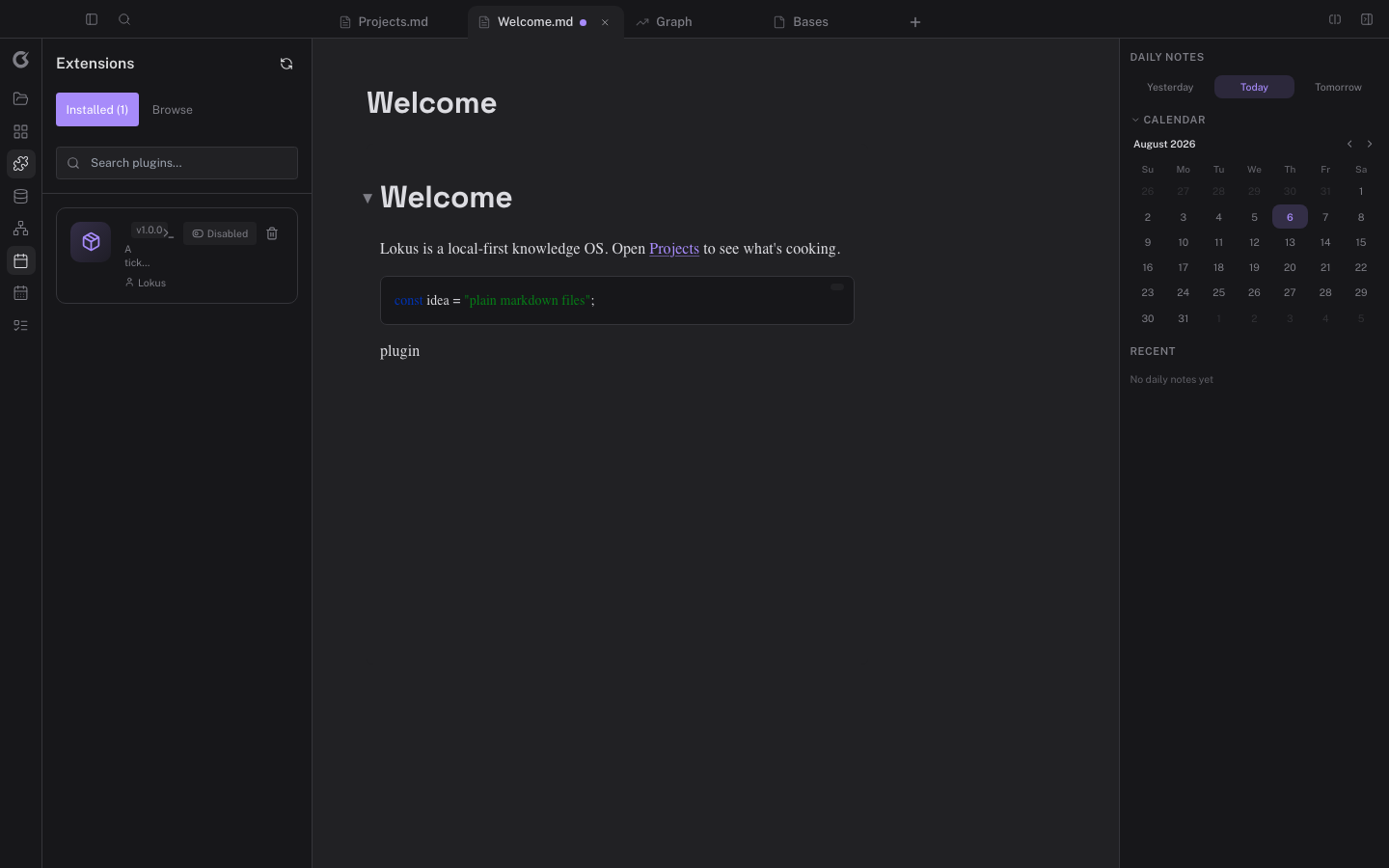
Plugins extend Lokus with commands, editor tools, sidebar panels, status-bar widgets, and even little companions running on top of your screen. Every plugin runs isolated from your notes and from Lokus itself — it can only do what you explicitly allow.
The Extensions view
Section titled “The Extensions view”Click the puzzle icon in the left ribbon to open Extensions.
- Installed — every plugin Lokus found in
~/.lokus/plugins/, with enable/disable, console, and uninstall controls. - Browse — the plugin marketplace at marketplace.lokusmd.com, searchable from the same screen.
- The refresh button (top right) rescans your plugins folder without restarting.
Installing a plugin
Section titled “Installing a plugin”From the marketplace
Section titled “From the marketplace”- Open Browse, find a plugin, click Install.
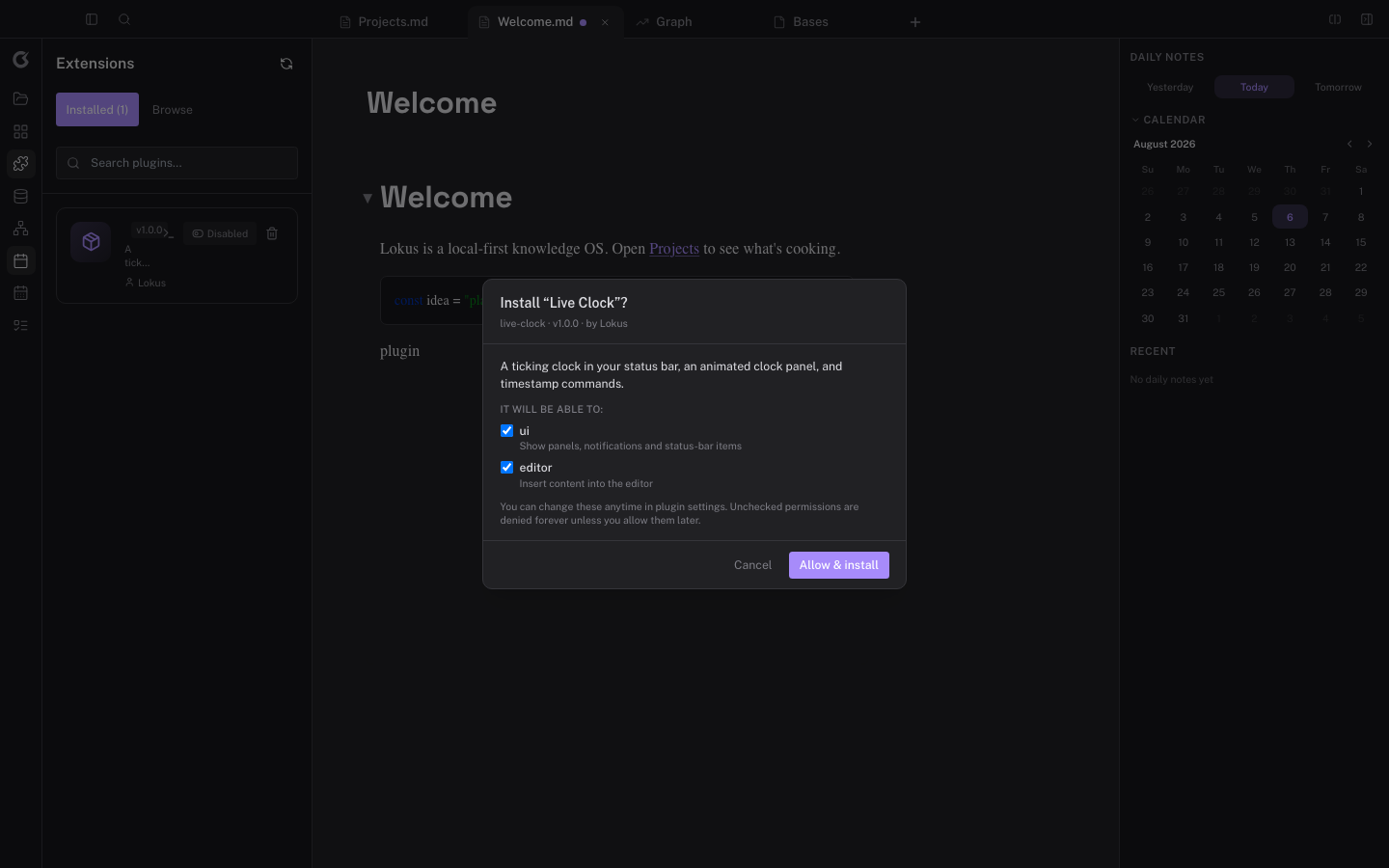
- The Ask Screen appears (see below). Review what it wants and click Allow & install.
Manually
Section titled “Manually”- Create a folder in
~/.lokus/plugins/<plugin-id>/. - Put a
plugin.json(with"apiVersion": 3) and the builtindex.jsinside. - Hit refresh in the Extensions view (or restart Lokus).
For developers (hot load)
Section titled “For developers (hot load)”A development server can be attached with the deep link lokus://plugin-dev?url=http://localhost:PORT. Lokus asks for confirmation before loading any development plugin.
The Ask Screen — you approve everything
Section titled “The Ask Screen — you approve everything”Before any plugin code runs, Lokus shows the Ask Screen: the plugin’s name, description, and the exact capabilities it is requesting. You can uncheck any of them.
| Capability | What it lets the plugin do |
|---|---|
commands | Run and trigger commands |
ui | Show notifications, panels, and status-bar items |
editor | Insert content into the open note |
notes.read | Read notes in your vault |
notes.write | Create or modify notes in your vault |
storage | Keep its own private data |
network | Access the internet |
overlay | Show a transparent, always-on-top window |
The Ask Screen appears on install and on every enable, so you can change your mind at any time. Anything you didn’t grant is denied at runtime — and every denied attempt is recorded in the plugin’s console.
Enabling, disabling, uninstalling
Section titled “Enabling, disabling, uninstalling”- Enable / Disable — the toggle on the plugin card. Disabling stops the plugin immediately; its panels and commands disappear.
- Uninstall — the trash icon. Removes the plugin folder after a confirmation.
The plugin console
Section titled “The plugin console”The terminal icon on a plugin card opens its console: live log output plus every capability request that was blocked. If a plugin misbehaves, this is where you’ll see exactly what it tried to do.
Where plugins can appear
Section titled “Where plugins can appear”Plugins declare contribution points in their manifest; Lokus renders them natively:
- Command palette (
⌘K) — plugin commands under their own name - Slash menu — type
/in the editor - Status bar — left or right side
- Editor toolbar buttons
- Sidebar / bottom panels — including webview panels
- Overlays — transparent windows above everything (desktop)
When do plugins run?
Section titled “When do plugins run?”Plugins boot lazily, only when needed, based on their activation events:
startup— as soon as Lokus openscommand:<id>— the first time their command runsview:<name>— when you open a viewfile:<ext>— when you open a matching file
A plugin that crashes repeatedly is stopped automatically after three strikes — Lokus itself keeps running.
Older plugins
Section titled “Older plugins”Plugins built for the old plugin system (no apiVersion: 3) are listed as unsupported and never execute. This is deliberate: the old system ran plugin code with full access to your machine.
Troubleshooting
Section titled “Troubleshooting”Plugin doesn’t appear — check the folder name matches the manifest id, that plugin.json has "apiVersion": 3, then hit refresh.
“Unsupported” — the plugin targets the removed pre-v3 system. Ask the author to update it.
A feature of my plugin says “permission denied” — you unchecked that capability. Disable and re-enable the plugin, and tick the box on the Ask Screen.